
Account overview
Your InstantProxies account is the main place where you manage your proxy services and account details. From the dashboard, you can access your proxies, review service information, manage account settings, and reach support when needed.
Keeping your account information current helps reduce setup issues and makes it easier to manage proxy-backed workflows across different environments.
Login and quick access
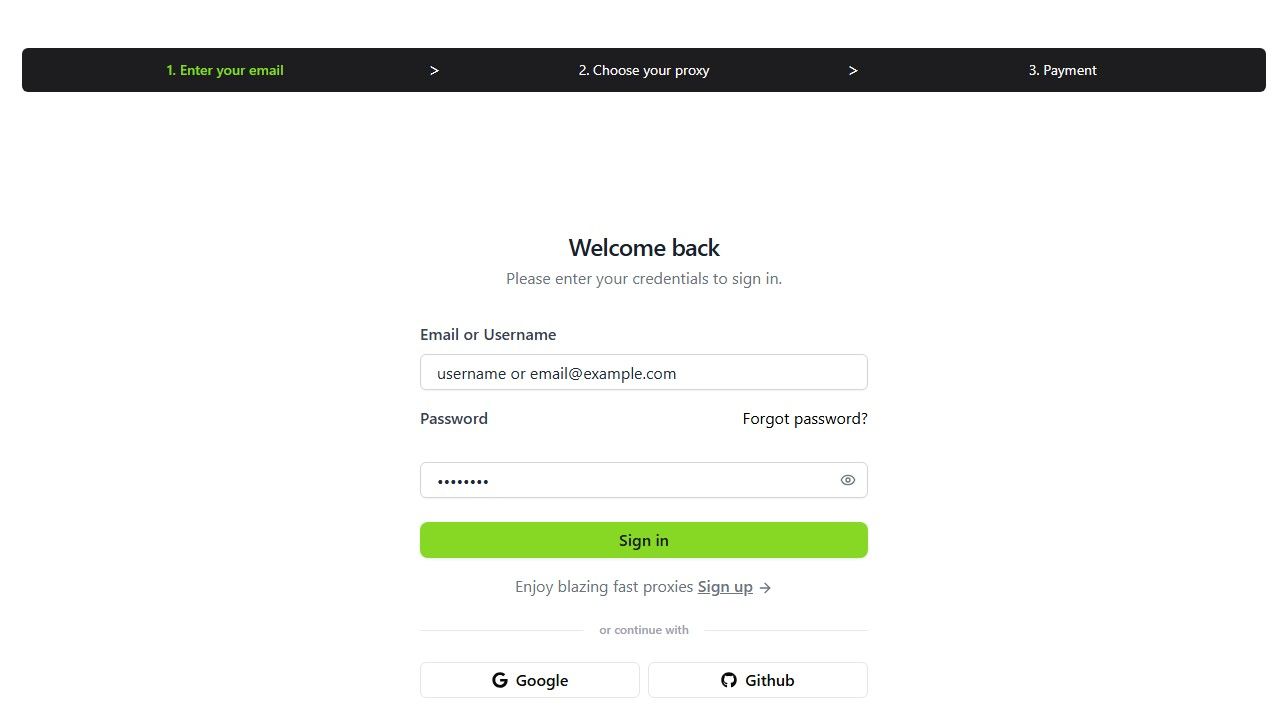
To access your account, go to the login page and enter your registered email and password.
Steps to access your account
- Go to the InstantProxies login page.
- Enter your registered email address.
- Enter your password.
- Click Sign In to access your dashboard.
For general dashboard navigation after login, start with Dashboard Overview.
Dashboard tour
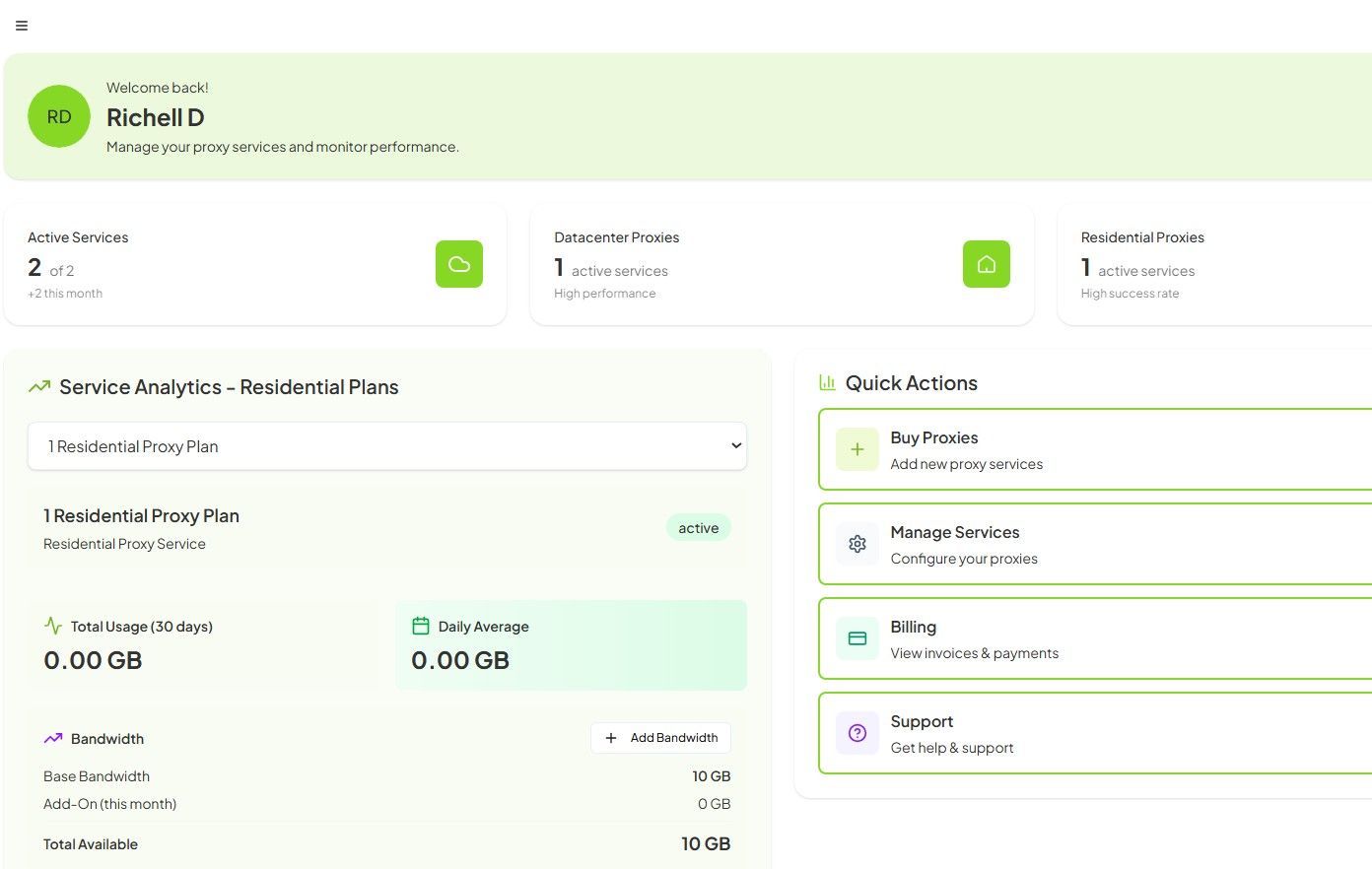
Your dashboard is the main workspace for account and proxy management. It helps you move between account settings, service details, proxy access, and support tools.
Dashboard
Provides a high-level view of your account, including active services, quick actions, and account-level visibility.
My Proxies
Displays your available proxies, including proxy type, assigned IPs and ports, and current status.
You may also see usage examples to help with setup and integration.
If you need to locate your assigned endpoints directly, continue to Finding Your Proxy List.
Plans and Pricing
Lets you review available proxy plans and compare service options.
Billing
Shows active subscriptions and transaction history.
Settings
Lets you manage account details, account-level preferences, and service-related settings.
Support Center
Lets you submit tickets and contact support.
API Documentation
Provides developer-facing references for programmatic proxy and account workflows.
Password change and reset
You can change your password from account settings or reset it if you no longer have access to your login credentials.
Steps to change your password
- Log in to your InstantProxies dashboard.
- Go to Settings > Account Settings.
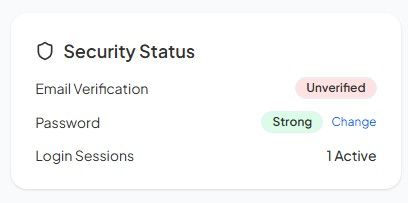
- Click Change under Security Status.
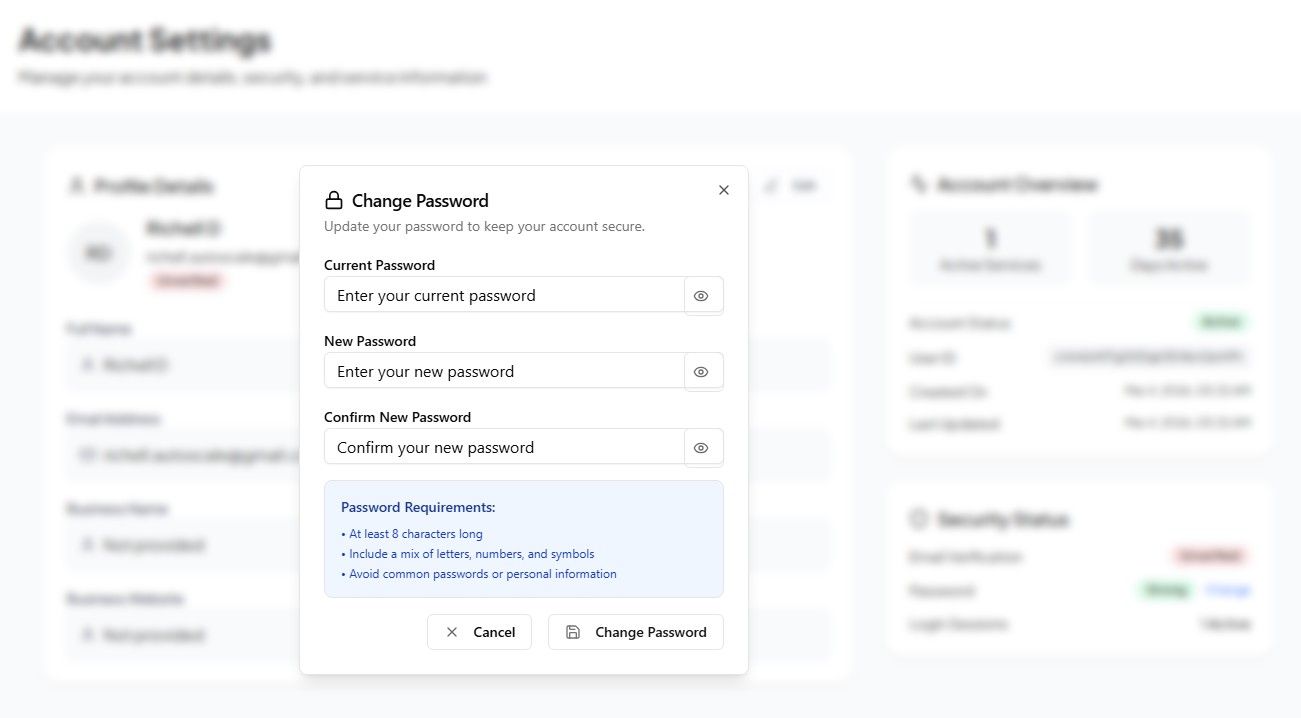
- Enter your current password.
- Enter your new password.
- Confirm the new password.
- Click Change Password.
Steps to reset your password
- Go to the login page.
- Click Forgot password.
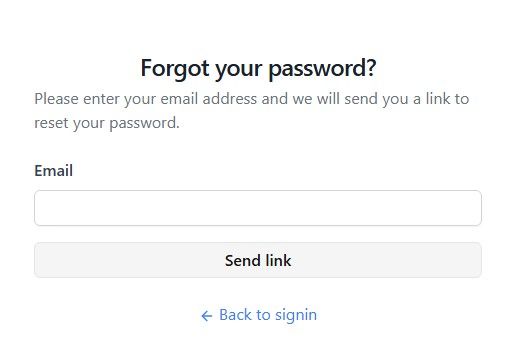
- Enter your registered email address.
- Follow the reset link sent to your inbox.
- Create a new password.
Password best practices
- Use a strong and unique password.
- Avoid reusing credentials from other platforms.
- Update your password when needed.
- Keep login details private and do not share them in tickets, screenshots, or chat.
For broader guidance on safer handling of account and access details, continue to Protecting Sensitive Access Details.
Account recovery
If you cannot access your InstantProxies account and standard recovery options do not work, contact support for assistance.
Steps to recover your account
- Contact support directly.
- Provide account details needed for verification, such as your registered email, recent activity, or proxy information.
- The support team will assist you with restoring access after verification.
Security note: Account access should only be restored after successful verification to protect the account from unauthorized changes.