
Using a proxy in Chrome allows you to route your internet connection through a different IP address. This helps improve online privacy, access geo-restricted websites, and test web content from multiple locations. Chrome supports multiple ways to configure proxies, whether you're using datacenter or residential IPs.
Set up proxy in Chrome via system settings
Important: Before proceeding, ensure your IP address is authorized in your InstantProxies dashboard.
If you still need to allow your current environment, start with Authorizing Your IP Address.
Windows Setup
-
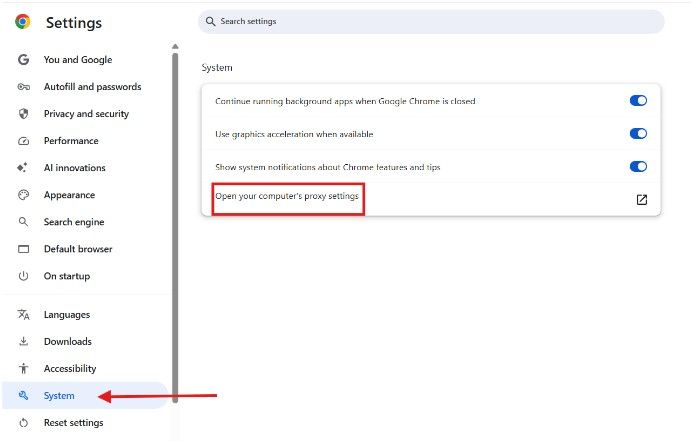
Launch Chrome and open Settings > System.
-
Select Open your computer’s proxy settings.
-
In the manual configuration section, switch on the Manual proxy setup. Then enter your proxy details (IP address and port).
- Example format:
192.126.169.233:8800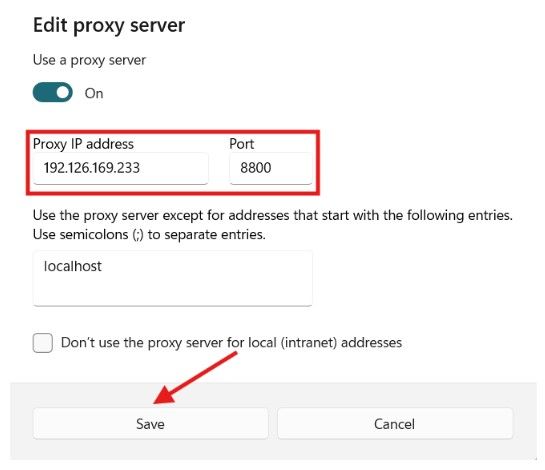
- Example format:
-
Click Save to apply the changes.
macOS Setup
Open Chrome and click the three-dot menu (⋮) in the top-right.
-
Navigate to Settings > System.
-
Click Open your computer’s proxy settings to access macOS network preferences.
-
Go to the Proxies tab. Enable both:
- Web Proxy (HTTP)
- Secure Web Proxy (HTTPS)
-
Input your proxy IP address and port in each field.
-
Confirm by clicking OK, then Apply.
Set up proxy using Chrome extension
If you prefer quicker switching between proxies or managing multiple configurations, a browser extension is recommended.
Via SwitchyOmega
-
Install Proxy SwitchyOmega 3 from the Chrome Web Store.
-
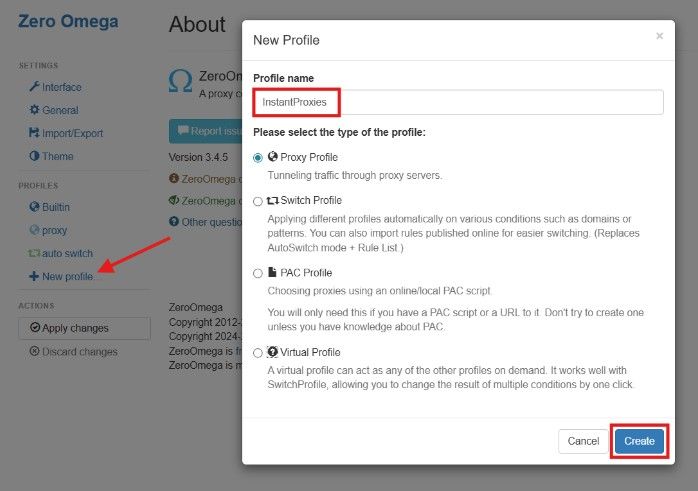
Create a new profile and assign it a name (e.g., InstantProxies).
-
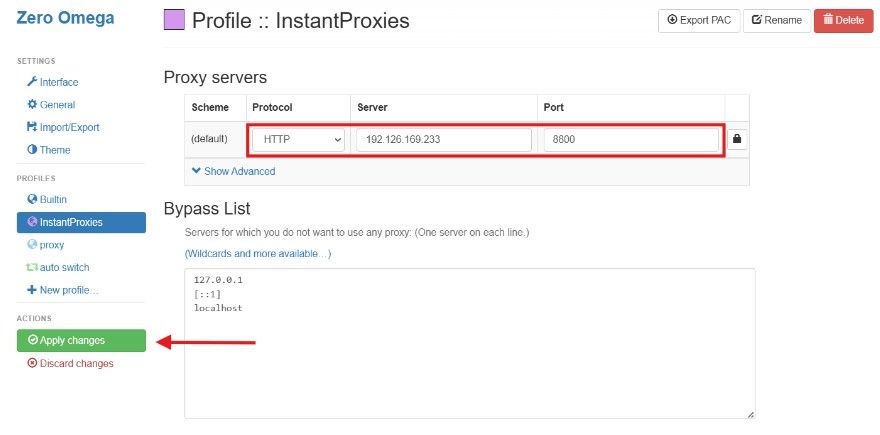
Fill in your proxy details as shown:
192.126.169.233:8800 -
Click Apply Changes to activate the profile.
-
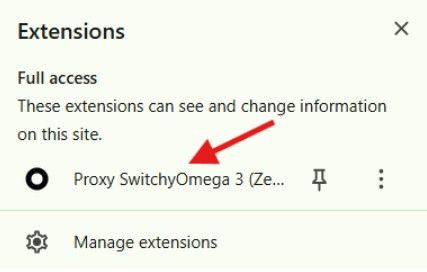
Open the extension and click the Proxy SwitchyOmega3 again.
-
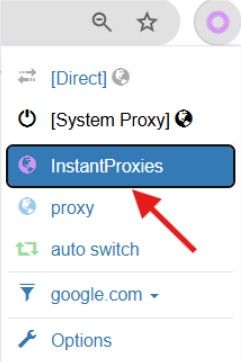
Select the profile you created from the drop-down list.
-
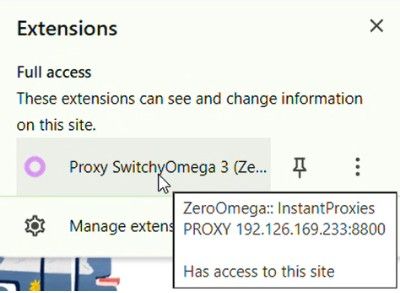
When active, the extension icon will change color to indicate the proxy is running.
Check proxy connection in Chrome
-
Open a new Chrome window with the proxy enabled.
-
Visit a site such as:
-
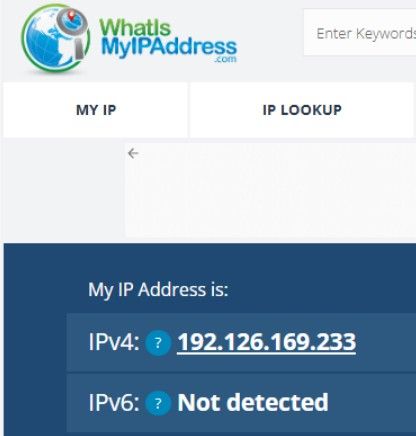
Check if the IP address displayed is the same as your InstantProxies IP.
Next step
After Chrome is configured, continue to Verify Your Connection to confirm that traffic is actually routing through the proxy path. If you want the broader browser setup guides, continue to Platform and Browser Setup.